AI Console
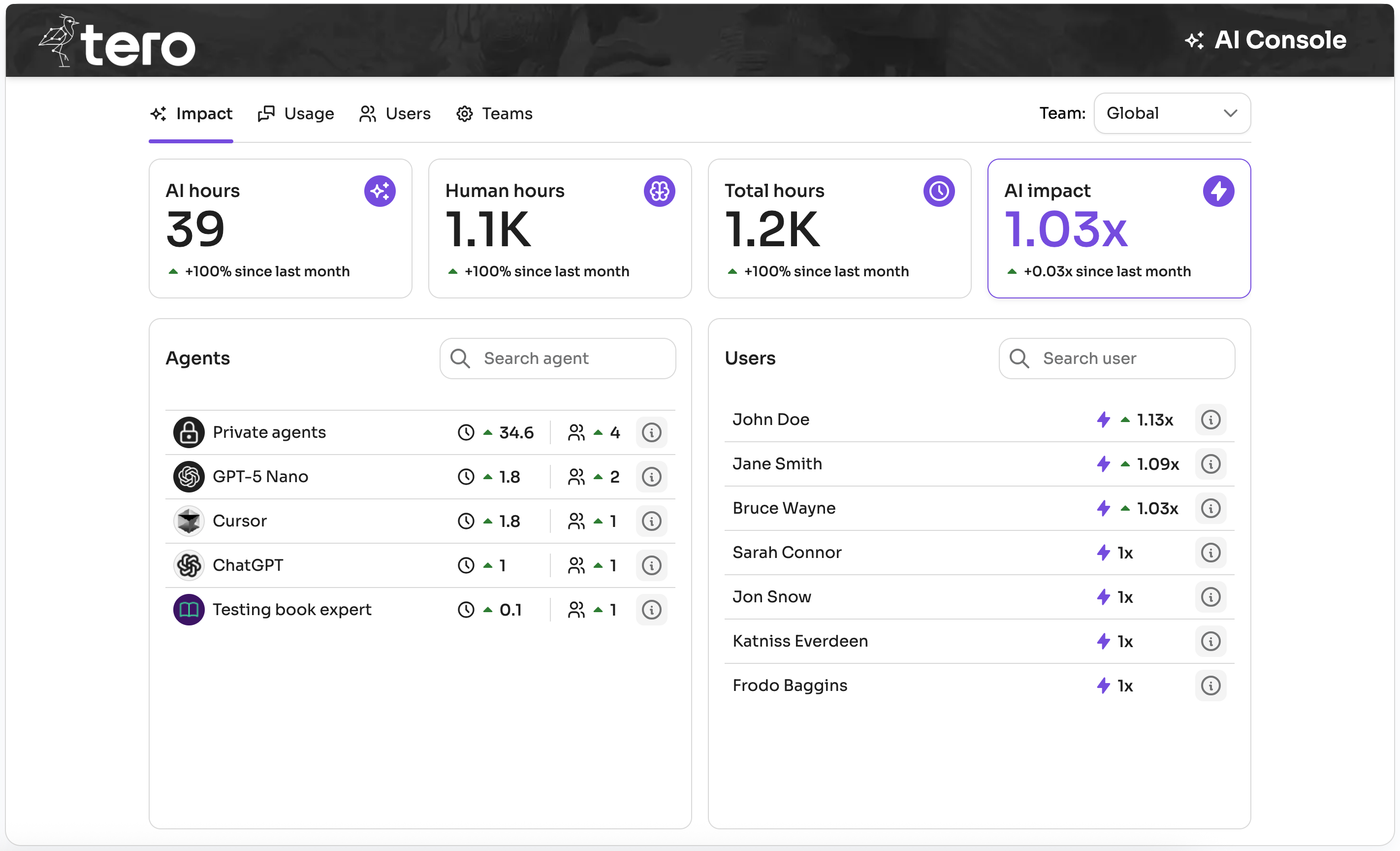
The AI Console is the place to understand how AI is being adopted and what impact it's having across your team. It shows adoption metrics, time savings, and team management tools — all scoped to the team you select.
Use the Team selector at the top right of each tab to filter data for a specific team. Team leaders and global owners see additional management tabs.
Impact Tab
The Impact tab answers the question: how much is AI actually helping? It translates raw usage into working hours, giving leaders a clear picture of the productivity benefit.
Metrics
| Metric | What it measures |
|---|---|
| AI hours | Hours saved by all users while using agents in the last 30 days |
| Human hours | Working hours contributed by team members in the last 30 days, based on each user's configured monthly hours (default: 160 h/month) |
| Total hours | AI hours + Human hours — the combined effective work output of the team |
| AI impact | Productivity multiplier: (AI hours + Human hours) ÷ Human hours |
AI impact tells you how much more the team accomplished compared to working without AI. For example, 1.25x means the team got 25% more done. A higher multiplier means AI is saving more time relative to the team's total capacity.
Each card also shows a comparison against the previous 30-day period so you can see the trend at a glance.
Where does "time saved" come from?
Time savings are tracked per chat. After each agent response, an estimate is shown and users can review and adjust it. That feedback improves future estimates and makes the numbers more accurate over time. See Saved Time for details.
Top Agents & Top Users
Below the summary cards you'll find ranked lists of the agents and users contributing most to time savings. Each entry shows minutes saved and active users, so you can identify which agents are delivering the most value and who is leading adoption.
Usage Tab
The Usage tab tracks adoption: how many people are using agents and how often. It's useful for understanding reach before diving into impact.
Metrics
| Metric | What it measures |
|---|---|
| Active users | Number of distinct users who had at least one chat in the last 30 days |
| Total chats | Number of conversations started in the last 30 days |
Both cards include a comparison against the previous period.
Personal view
When you select Me in the team selector, Active users is hidden since it only applies to teams. You'll see your own Total chats.
Top Agents & Top Users
The ranked lists here show which agents and users have the highest number of chats, helping you spot the most active adopters and the agents with the broadest reach.
Users Tab
Access
This tab is only visible to team leaders.
The Users tab is where you manage who is on a team and what they can do. You can:
- Add users — invite someone by email; they receive a pending invitation until they accept.
- Change roles — click the role next to any accepted user to switch it.
- Remove users — use the action menu to remove a member or cancel a pending invitation.
- Search — filter the list by name or email to find a specific user quickly.
Roles
| Role | What they can do |
|---|---|
| Leader | Manage team membership, edit any agent published in the team, and view Impact & Usage metrics for the team |
| Editor | Edit agents published in the team |
| Member | Use agents published in the team |
Teams Tab
Access
This tab is only visible to global team owners.
The Teams tab lets global owners create and manage the teams in the Tero instance. From here you can:
- Create a team — give it a name and optionally add initial members.
- Edit a team — rename it or manage its members directly from the edit dialog.
- Delete a team — removes all members from the team.
Deleting a team
When a team is deleted, its agents are not deleted — they become private. Users who relied on those agents will lose access. Make sure to reassign or republish important agents before deleting a team.