Create Agents
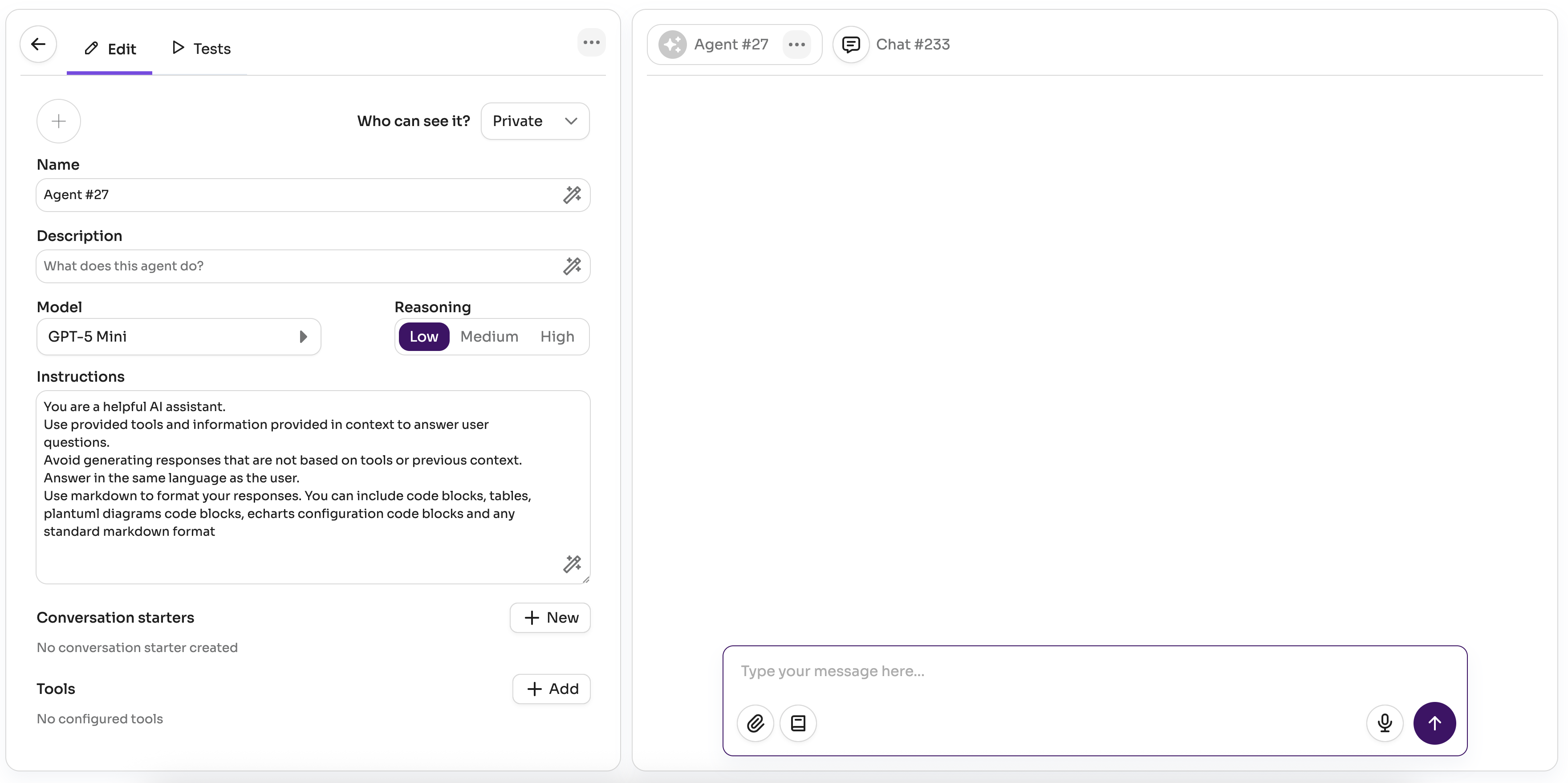
If there isn’t an agent that helps with your needs, create one! Creating an agent is simple, and once it works and helps you, share it so your team and the Tero community can benefit too.
While you create or edit an agent, every change is saved automatically and you can try your changes right away in the chat on the right.
Clone
One of the easiest ways to create an agent is to clone an existing one. This lets you adapt an agent to your context (project, preferences, way of working), or create similar agents reusing existing ones as templates.
You can clone an agent from the agent detail dialog in Explore agents or from any chat with that agent.
Basic Info
When you create an agent, choose a good icon, name, and description. This helps quickly identify it among other agents.
Names and descriptions are purposely short in Tero to support quick scanning and selection. Think of the user and be succinct so the agent’s purpose is clear.
Description for subagents
If this agent will be used as a subagent, the parent uses the description to decide when to delegate. Keep it specific about what the agent is for.
Auto-generate
Tero can auto-generate the name, description, and system prompt from the other fields. If you’ve set some fields, use the magic wand to generate or refine the rest. It’s handy for starting values or quick adjustments.
Model
Tero supports a growing variety of LLM models you can use as the basis for your agent. The model is like the agent’s brain: it analyzes each user request, plans how to answer using the configured tools, and either generates an answer or invokes tools as needed.
Available models in your Tero instance depend on how it’s configured. Currently Tero supports models from OpenAI (GPT), Azure OpenAI (GPT), AWS Bedrock (Claude), and Google (Gemini). The community continues to expand this list.
Cheaper & faster first
When creating an agent, start with cheaper and faster models. They’re easier to use and help you, and others, avoid unnecessary budget spend (in general more powerful = more expensive).
Experiment
Different models excel at different tasks (e.g., Claude often shines for code; GPT can be great for brainstorming or writing). Experiment, and don’t assume a new version of a model behaves like the previous one.
Depending on the model type, you may also set Temperature or Reasoning level.
Temperature
Temperature controls how much the agent’s answers vary. For more creative outputs (e.g., brainstorming), choose Creative. For more consistent, precise answers with less variation, choose Precise. Use Neutral for a balanced behavior.
Reasoning Level
Reasoning level defines how much the agent analyzes before answering. More reasoning usually means better results but slower responses. Use High for complex tasks, Low for simple tasks, and Medium for relatively simple ones.
Instructions
The instructions (aka system prompt) define how your agent responds to user requests. A good system prompt usually includes a role the agent should assume, the main tasks it solves, formatting expectations for answers, and optionally examples of inputs and outputs.
Short and simple
Prefer short, simple prompts. The bigger the prompt, the harder it is to follow by the agent and for you to maintain.
Agent to tune system prompt
Use an agent to help you improve your system prompt. You can use the Agents from Scratch agent if you need help to start from scratch.
Divide & Conquer
Avoid “do everything” agents. Focus each agent on a specific task and create multiple agents for different needs. It keeps instructions short, answers better, reduces budget by limiting context, and makes it easier for users to discover the right agent.
To combine specialists into one workflow, switch the orchestrator to Advanced mode and add the Subagent tool.
Optimize
Start simple, then optimize. Review the Thought Process to see how the agent solves requests and add step-by-step guidance to the prompt for recurring tasks. This makes answers faster, more predictable, and reduces budget usage. With detailed instructions, you can often use cheaper & faster models too.
Markdown
Ask the agent to format answers in Markdown. You’ll get cleaner results (headings, lists, tables, code blocks, etc.).
PlantUML
If you need UML or general diagrams, ask the agent to use PlantUML.
When doing so, instruct the agent not to wrap diagrams in code blocks so they render properly. Add something like the following to the agent's system prompt:
When generating PlantUML diagrams, do not wrap them in code blocks. Output the raw diagram text starting directly with @startuml.
Example — this generates only the text of the diagram:
```plantuml
@startuml
[User] --> [App]
@enduml
```
And this renders a diagram image:
@startuml
[User] --> [App]
@enduml
ECharts
You can also ask the agent to present information using charts with ECharts.
Conversation Starters
When you create an agent, consider adding Conversation starters. They help new users understand what the agent can do and get going quickly. Like any other prompt, they can use variables to ask for the details you need.
Tools
Tools extend what your agents can do. Below is the list of currently supported tools. Expect it to grow as the community contributes new ones.
Keep it lean
Enable only the tools your agent truly needs. Fewer tools makes the agent faster, cheaper, and more predictable.
Docs
Upload files to your agent so it can use their content when answering questions. The agent searches the uploaded files using semantic similarity and grounds its responses in what the documents actually say, citing the source files.
This is useful for agents that need to reason over technical documentation, test plans, specifications, runbooks, or any domain-specific knowledge that isn't in the model's training data.
The agent can:
- Answer questions from uploaded documents using semantic search across all files
- Cite sources — responses reference the specific file sections they were drawn from
- Reason across multiple files — the agent considers all uploaded files together when answering
Supported file types include PDF, plain text, Markdown, and common document formats.
Basic vs Advanced PDF processing
Basic processing is faster and works well for most PDFs. Advanced processing (when available) handles complex PDFs with tables, multi-column layouts, and embedded images more accurately, but it costs more and takes longer.
Use Advanced only when the agent consistently misses or misreads content from your PDFs.
Verify answers
Verify answers is on by default. When enabled, each answer is checked against the uploaded files and source links are added, so the response stays grounded in the documents instead of invented facts. This extra pass takes longer and uses more budget.
Turn it off for faster, cheaper responses. Stronger models hallucinate less, so verification matters most with smaller models or when you need cited sources.
Web
Search the web and extract text content from public URLs. The agent can look up current information beyond its training data or read specific pages as part of answering a request.
The agent can:
- Search — query the web and retrieve a ranked list of relevant results with snippets
- Extract — read the full text content of public URLs, including documentation sites, blog posts, changelogs, and issue trackers
This tool requires no configuration by the agent creator. It is available when a Tero admin has configured a web search API key (Tavily or Google Custom Search) for the instance.
Search vs Extract
The agent uses search to find relevant pages for a query, and extract to read the full content of a specific URL. You can ask the agent to visit a URL directly, or let it search and pick the best result.
Browser
Automate real browser interactions using Playwright. Unlike the Web tool which only reads static content, the Browser tool can interact with live web pages — useful for apps that require login, dynamic content, or multi-step navigation.
The agent can:
- Navigate — open URLs, follow links, handle redirects and page transitions
- Interact — click buttons, fill forms, select dropdowns, check checkboxes, upload files
- Read — extract text, read table data, capture the current state of dynamic pages
- Screenshot — take screenshots to capture the current state of a page
- Wait — wait for elements to appear or conditions to be met before acting
This tool requires no configuration by the agent creator.
Concurrent browser sessions
Tero currently only supports 1 active browser session at a time. If multiple users try to use it at the same time they may get a notification about this.
Subagent
Delegate parts of a request to another Tero agent. Use this to keep each agent focused on a specialty — for example an orchestrator that routes work to a researcher, a writer, and a reviewer — instead of packing every skill into one prompt.
The parent agent decides when to delegate. Each subagent runs with its own model, instructions, and tools, then returns a result the parent can use to continue. If a subagent is also Advanced and has its own subagents, it can delegate further.
Advanced mode only
Subagents can only be configured on Advanced agents. Switching the parent back to Basic removes the configured subagents.
Setup
- Set Agent mode to Advanced in the agent's advanced settings.
- Add the Subagent tool.
- Select the agent to delegate to. You can search by name.
The selected agent's description is what the parent uses to decide when to delegate, so keep it specific about what that agent is for.
Who you can select
You cannot select the agent you are configuring as a subagent of itself. You can select other agents, including ones that already have their own subagents.
If A delegates to B and B delegates back to A, Tero skips the loop at runtime so the chain does not run forever.
Multiple subagents
The tool can be added several times to the same agent, once per subagent. Each instance appears with the selected agent's name.
Sharing
Before you share the parent with a team, each subagent must already be shared with that same team, or with the Global team. Private subagents cannot be used by a published orchestrator.
Thought process
When the parent delegates, the thought process shows the subagent by name (for example, “Delegating to Researcher”) and the tools that subagent runs.
Budget
Each subagent uses its own model, so you can keep a stronger model on the parent and delegate simpler tasks to cheaper, faster ones. Delegated work still counts toward the chat’s budget.
Jira
Manage issues and track project activity in Jira Cloud. The agent can work across the full issue lifecycle and project structure.
The agent can help with:
- Issues — create, read, update, and delete issues; add comments and attachments
- Projects — browse projects and retrieve project details and statuses
- Search — use JQL (Jira Query Language) to find issues across projects
- Users — look up user information
Authentication
This tool uses OAuth 2.0 (3LO). You need to create an OAuth app in the Atlassian developer console and provide its credentials.
Steps to set up:
- Go to developer.atlassian.com and sign in.
- Open Developer console and create a new app.
- In the left menu, go to Authorization → click Configure next to OAuth 2.0 (3LO).
- Enter the Callback URL provided by your Tero instance and save.
- Go to Permissions and add the Jira API. Enable the scopes you need:
read:jira-work— read issues, projects, and boardswrite:jira-work— create and update issuesread:jira-user— read user information
- Copy the Client ID and Client secret from the app settings.
Enter the Client ID, Client secret, and selected scopes in the tool configuration. After saving, each user will be prompted to authorize the connection with their Atlassian account.
Azure DevOps
Browse projects and teams, manage work items, and work with test plans in Azure DevOps Services.
The agent can help with:
- Projects & teams — list and read projects and teams, and inspect team membership
- Work items — search with queries; read, create, update, and delete work items; inspect work item types, fields, states, and relation types; manage field definitions when needed
- Saved queries — run a saved work item query and get its work items already resolved, optionally narrowed down by an extra condition, with additional fields, and with their related work items
- Traceability — link work items together (for example user stories and test cases)
- Test plans — browse and manage test plans, suites, and configurations
- Test cases — list cases in a suite, add or remove them from suites, find which suites contain a given case, and delete a test case (one at a time)
- Test results — get the outcome of every test case in a suite and all of its child suites, together with the bugs they are associated with
Authentication
Microsoft Entra delegated OAuth. Register an app in Entra ID and add Azure DevOps delegated permissions matching the scopes you select in Tero.
Setup:
- Register an application in Microsoft Entra ID.
- Add a Web redirect URI: the callback URL shown in the tool configuration.
- Under API permissions, add Azure DevOps delegated permissions matching the scopes available in Tero (e.g.
vso.profile,vso.project,vso.work,vso.work_write,vso.test,vso.test_write). - Copy Application (client) ID, create a client secret, and enter tenant ID in Tero.
Each user authorizes with their Microsoft work account when they first use the tool. Actions run with that user's Azure DevOps permissions.
The scopes you select in Tero control what the agent can do:
- Profile (read) — read the signed-in user's profile
- Projects and teams (read) — read projects and teams
- Work items (read) — read work items
- Work items (write) — create, update, and delete work items
- Test plans (read) — read test plans, suites, and cases
- Test plans (write) — manage test plans, suites, configurations, and suite membership, and delete test cases one at a time
See Entra OAuth for Azure DevOps.
Zephyr
Manage test cases, plans, cycles, and executions in Zephyr alongside your Jira projects. The agent can work across test library structure, linkage to Jira issues, planning, and execution tracking.
When configuring the tool, choose Zephyr Cloud or Zephyr Essential Cloud. The access token must match the selected product.
Zephyr does not require the Jira tool, but enabling both is recommended when you need full issue context—reading or updating stories and bugs, JQL search, or backlog work beyond test management and traceability links.
The agent can help with:
- Test cases — search test cases by project, status, and name; clone test cases; read and update test cases; folders, labels, and custom fields; steps and scripted tests
- Traceability — view and create links between test cases and Jira issues
- Test plans & cycles — create and browse plans and cycles; link cycles to plans when supported by the workflow
- Executions — create and update executions per cycle and environment; review execution outcomes
- Project context — list projects, folders, statuses, priorities, and environments relevant to configuring tests
Authentication
This tool uses a personal Zephyr API access token. Each Tero user connects with their own token; Tero stores it per user and reuses it until Zephyr rejects it (for example when the token expires), at which point you are prompted to enter a new one.
Anything the agent creates or updates in Zephyr is performed as the Zephyr/Jira user who owns that token, with that account’s permissions—not as a generic “agent” user.
Generate an access token
- In Jira/Zephyr, create an API access token for your account (Zephyr Essential Cloud or Zephyr Cloud, depending on your product).
Connect in Tero
- When configuring the agent — select your Product, paste the token in Access token, and save. This validates the tool and saves the connection for your Tero user.
- When using the agent — every other user must enter their own token the first time they chat with that agent (or again after their token stops working). You will see a prompt asking for the token; it is not enough that only the agent creator configured one.
GitHub
Search code, manage repositories, review pull requests, and track issues — all through the official GitHub MCP server.
The agent can help with:
- Issues — create, read, update, comment on, and label issues
- Pull requests — create, review, merge, and comment on PRs; request reviews
- Repositories — browse files and commits, create branches, browse releases and tags
- Users — look up user profiles and organization members
- Context — access information about the authenticated user and their teams
Info
Only the GitHub core tools are currently supported. Advanced toolsets such as Actions, Projects, Security, Discussions, and Notifications are not supported.
Authentication
This tool uses a GitHub Personal Access Token. The token is used for all requests on behalf of the agent.
Steps to get a token:
- Go to GitHub → Settings → Developer settings → Personal access tokens.
- Create a new token (classic or fine-grained).
- Grant the scopes your agent needs — for example
repofor full repository access,read:orgfor organization data. - Copy the token and paste it into the tool configuration.
Fine-grained tokens
Fine-grained tokens let you limit access to specific repositories and permissions, which is a safer choice for shared agents.
Notion
Search and retrieve pages and content from a Notion workspace. Access is read-only.
The agent can help with:
- Search — find pages by title across the workspace
- Pages — retrieve a page and its properties
- Content — read the block content of a page
Shared credentials
You configure the integration token once. All users of the agent will use it with that Notion workspace data (read-only). Only the agent owner can configure or update this tool.
Authentication
This tool uses a Notion internal integration token.
Steps to set up:
- Go to My integrations in Notion and create a new internal integration.
- Copy the Internal Integration Secret (token).
- In Notion, open each page the agent should access → ⋯ → Connections → connect your integration.
- Paste the token into the tool configuration.
Page access
The integration can only see pages you explicitly connect. If search returns nothing, check that the relevant pages are shared with the integration.
YouTrack
Report issues, log work time, and manage knowledge base articles in JetBrains YouTrack. The agent connects to the YouTrack MCP server built into your instance (requires YouTrack 2025.3 or later).
The agent can help with:
- Issues — search using YouTrack query language, create, update, assign, comment on, tag, and link issues
- Time tracking — log work time directly on issues
- Knowledge Base — search, read, create, and update articles
- Projects — find and inspect project configurations and custom field schemas
- Users & groups — look up users by name or email, list group members
Authentication
This tool uses a YouTrack permanent token and connects to the YouTrack MCP server built into your instance.
Steps to set up:
- In YouTrack, click your avatar → Profile → Account Security tab.
- In the Tokens section, click New token.
- Enter a name and select the YouTrack scope, then click Create token.
- Copy the token immediately — it is only shown once.
- In the tool configuration, enter:
- Server URL: your YouTrack MCP endpoint, e.g.
https://your-instance.youtrack.cloud/mcp - Token: the permanent token you created
- Server URL: your YouTrack MCP endpoint, e.g.
PractiTest
Manage tests, test sets, and requirements in PractiTest. The agent connects directly to your project data, making it useful for QA workflows that need to bridge AI-generated content with your test management system.
The agent can help with:
- Tests — create, read, and update test cases
- Test sets & runs — manage test sets and track execution results
- Requirements — read requirements and analyze test coverage
- Coverage analysis — identify gaps between requirements and existing tests, then create missing tests and link them back to requirements
Authentication
This tool connects to the PractiTest MCP server.
Availability
The PractiTest MCP server is available for Corporate accounts.
Steps to set up:
- In the tool configuration, enter:
- Server URL: your PractiTest MCP server URL
Redmine
Manage issues, projects, and time tracking in Redmine.
Enterprise Edition
This tool is only available in the Tero Enterprise Edition.
The agent can help with:
- Issues — create, read, update, and delete issues; add notes; change status and assignee
- Time tracking — log and review time entries on issues and projects
- Projects — browse projects and versions
- Search — find issues across projects using filters
Authentication
This tool uses a Redmine API key for authentication.
Prerequisite
A Redmine administrator must first enable the REST API under Administration → Settings → API → Enable REST API.
Steps to set up:
- In Redmine, click your account name in the top-right → My account.
- In the right-hand pane, find your API access key (generate one if it doesn't exist yet).
- In the tool configuration, enter:
- URL: your Redmine instance URL, e.g.
https://redmine.example.com - API Key: the key from your Redmine account
- URL: your Redmine instance URL, e.g.
MCP
Connect to any Model Context Protocol (MCP) server and expose its tools to the agent. This lets you integrate any service that provides an MCP interface without needing a dedicated Tero tool.
Once connected, the agent automatically discovers and can use all tools exposed by the MCP server — whatever those tools do (querying APIs, managing resources, reading data) becomes available in the agent's context.
Authentication
Two authentication modes are supported:
OAuth — the agent creator provides the server URL and each user authorizes via the OAuth flow when they first use the tool.
Bearer Token — the agent creator provides the server URL and a static bearer token used for all requests.
Some servers also require custom HTTP headers (for example, a workspace ID or API version header). Use the Custom headers field to add any additional headers the server needs.
Transport
The tool supports both SSE (/sse endpoint) and streamable HTTP transports. The correct transport is selected automatically based on the server URL.
SQL
Query databases with natural language. The agent can explore your data and answer questions without writing SQL manually.
The agent can help with:
- Databases — list available databases on the server
- Tables — discover tables and their schemas
- Queries — run SELECT, INSERT, UPDATE, DELETE, and other SQL statements
Warning
The agent can modify or delete data. To reduce risk, grant database users read-only permissions unless write access is explicitly needed.
Info
Only Azure SQL Database is currently supported.
Authentication
This tool uses OAuth 2.0. You need to register an app in Azure Active Directory and grant it access to Azure SQL Database.
Steps to set up:
- Go to the Azure portal and open Microsoft Entra ID → App registrations → New registration.
- Give the app a name and set the Redirect URI (type: Web) to:
{your-tero-url}/tools/sql/oauth-callback - After creating the app, go to Certificates & secrets → New client secret. Copy the secret value.
- Go to API permissions → Add a permission → APIs my organization uses → search for Azure SQL Database.
- Select the Delegated permission
user_impersonationand click Add permissions. - Copy the Application (client) ID and the Directory (tenant) ID from the app's Overview page.
Enter the following fields in the tool configuration:
- Server (required) — SQL Server fully qualified domain name.
- Tenant ID (required) — Directory (tenant) ID of the app registration.
- Client ID (required) — Application (client) ID of the app registration.
- Client secret (required) — secret created for the app registration.
- Alias (optional) — see Multiple servers below.
After saving, each user will be prompted to authorize the connection with their Azure account.
Multiple servers
The tool can be added several times to the same agent, once per server. Each connection has an optional Alias that identifies it — if left empty, the server name is used. The alias must be unique among the connections of the agent, and the agent uses it to choose the connection to work with, so give it a meaningful name.
No matter how many connections are configured, the agent always sees the same tools: when there is more than one connection they just take the alias as an extra input.
All connections share the same redirect URI, so a single app registration can be reused for every server. Users still need to be provisioned in the databases of each server, and each connection is authorized separately.
Granting access to users
Because the tool acts on behalf of each user, every user must be provisioned in the databases they need to work with — without this the agent won't be able to discover or query the data, even if the OAuth authorization succeeds.
Connect to the target database as the Microsoft Entra admin of the server and create a user from the external provider, then add it to a role with the appropriate permissions:
CREATE USER "{user-email}" FROM EXTERNAL PROVIDER;
ALTER ROLE db_datareader ADD MEMBER "{user-email}";
db_datareader grants read-only access, which is the recommended setup. If the user needs to modify data, also add them to db_datawriter, or use a broader role such as db_owner for full access:
ALTER ROLE db_owner ADD MEMBER "{user-email}";
Repeat this in each database the user should be able to query. The user must also be created in master, since the database list is retrieved by querying sys.databases there (on Azure SQL you can only connect to databases where your account is provisioned):
-- connected to master
CREATE USER "{user-email}" FROM EXTERNAL PROVIDER;
Note that sys.databases only returns the databases the account owns unless it has permission to enumerate all databases on the server (e.g. VIEW ANY DATABASE).
Advanced Settings
In the agent editor, Advanced settings lets you configure agent mode, the thought process steps limit, and protected configuration.
Agent mode
Every agent runs in one of two modes: Basic or Advanced. Basic is the default and works well for most agents.
Basic responds quickly and works well for chat, drafting, Q&A, and tasks that need a few tool calls per request.
Advanced is for complex, multi-step work. It can offload large context to files attached to the chat, summarize long conversations to stay within model limits, and keep better track of subtasks across many steps. It is a better fit when the agent relies heavily on tools or when a single request spans a long-running workflow. Advanced mode is also required to configure subagents — other Tero agents the orchestrator can delegate work to. Advanced mode typically takes longer and uses more budget than Basic.
When to use which
Use Basic if:
- The agent mainly answers questions, drafts text, or brainstorms ideas.
- Each user request usually needs zero to a few tool calls.
- You want the fastest responses and lowest cost.
- You are creating a new agent — start here.
Use Advanced if:
- A request often requires many tool calls in sequence (e.g., search, read, compare, update, verify).
- Users attach large documents and the agent must refer back to them across multiple turns.
- Chats run long and the agent loses earlier context or truncates attachments in Basic mode.
- You want the agent to delegate parts of a request to other specialized agents.
When in doubt, keep Basic. Switch to Advanced only when you see a clear need — for example, lost file context or workflows that stall in Basic mode.
Start with Basic
Create and tune new agents in Basic mode first. Optimize the system prompt, tools, and model before switching to Advanced. Advanced mode solves different problems — it is not a substitute for clear instructions.
Files in Advanced mode
In Advanced mode, text attachments are kept in a per-chat workspace the agent can read across turns, instead of repeating the full content every time.
Switching to Basic
Switching back to Basic removes any configured subagents. The agent will no longer be able to delegate work.
Thought process steps limit
This setting caps how many steps the agent can take while answering a single request — each model turn or tool call counts toward the limit. It prevents runaway loops and unnecessary budget spend.
The default is 20 steps. You can raise it to 40, 60, 80, or 100 if legitimate workflows need more room.
Budget and latency
Higher limits increase response time and budget usage. Before raising the limit, review the Thought Process for failed requests and tighten the system prompt or reduce tools so the agent needs fewer steps.
Protected configuration
Protected configuration is available only to global owners of the Tero instance. When enabled, other users cannot view, clone, or modify the agent’s configuration — including its system prompt, model, tools, and advanced settings. They can still chat with the agent normally.
Use this when you publish an agent widely but want to keep its setup private — for example, agents with sensitive instructions, proprietary workflows, or carefully tuned behavior you do not want copied or edited.
Use sparingly
Avoid unless truly necessary. Protected agents can't be learned from, cloned, or improved by others — working against Tero's spirit of collaboration and sharing.
Tests
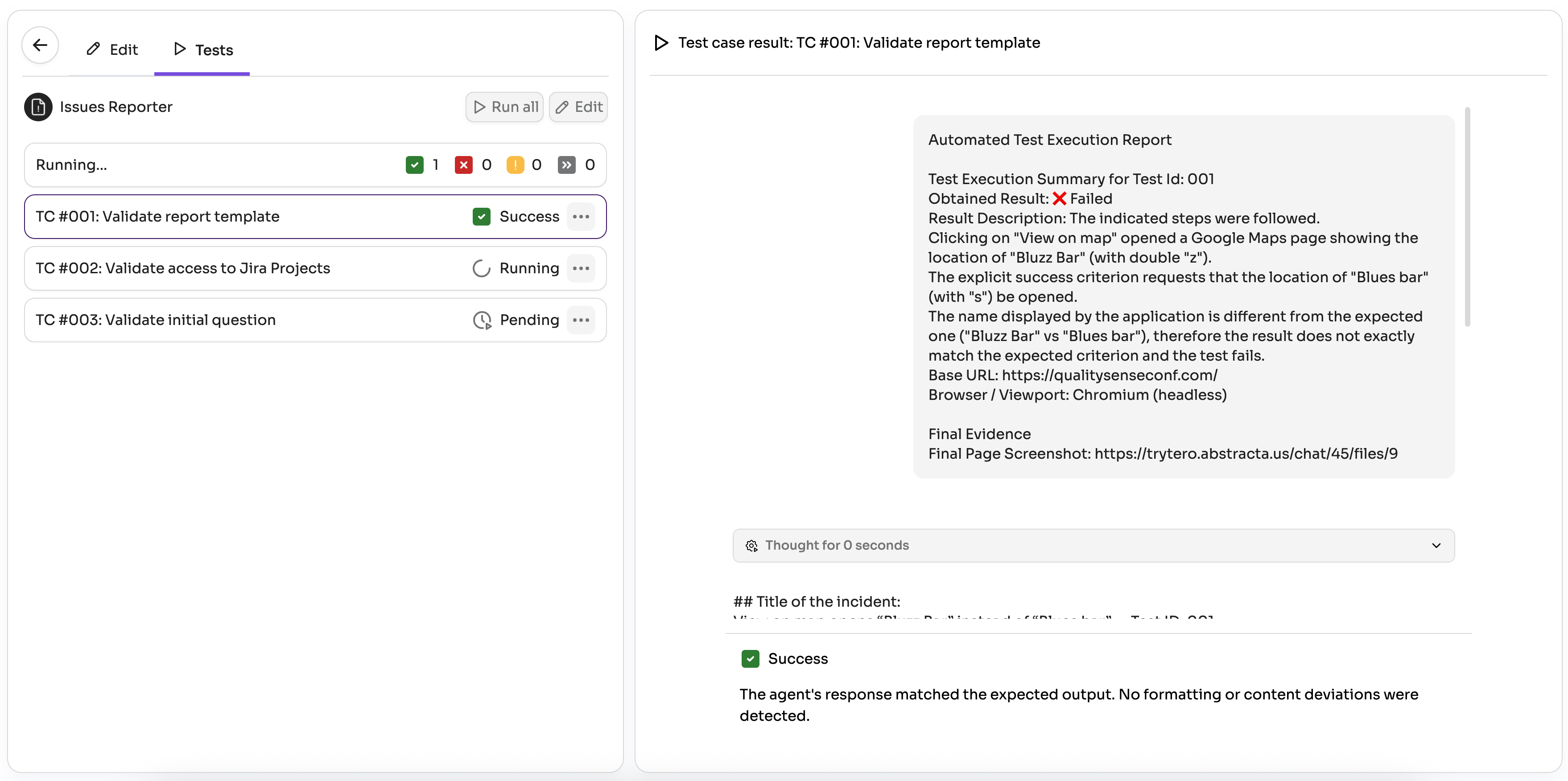
Tero focuses on software quality, and quality requires tests. Add tests to ensure your agents behave as intended.
Tests let creators and editors experiment safely. Define a test suite for your agent by specifying user inputs and example expected outputs. Then you can change models, prompts, tools, etc., and verify, by running the test suite, that your core use cases still work.
Publish
When your agent starts being useful to you, share it with your team so others can benefit too!
You can share it with any private team (only your teammates can use it), or with the Global team (all users in your Tero instance can discover and use it).
When you share an agent with a team, the team leaders can edit the agent if they need to improve it. You’ll still be able to edit it, and you’ll remain listed as the author.
Export & Import
You can move agents (or their updates) between Tero environments by exporting and importing them.
Furthermore, you can import any agents contributed by the community from the public repository of agents.
Persistent memory
Persistent memory lets an Advanced agent remember useful information across chats. Each memory belongs to a specific user and agent: it is shared across that user's chats with the same agent and isolated from other users and agents. Basic agents do not use persistent memory.
For new agents, persistent memory is off by default. To enable it, switch the agent to Advanced mode and turn on Persistent memory in its advanced settings.
When persistent memory is off, the agent cannot read or update its memory. Turning it back on restores access to the existing memory. Switching the agent temporarily to Basic mode also leaves its memory intact, and deleting a chat does not delete persistent memory.
Manage remembered information by asking the agent to remember or forget it. Do not store passwords, access tokens, or other secrets in agent memory.
Be part of the Tero community: contribute your agents so everyone benefits! Export your agent and submit a Pull Request to the repository.