Use Agents
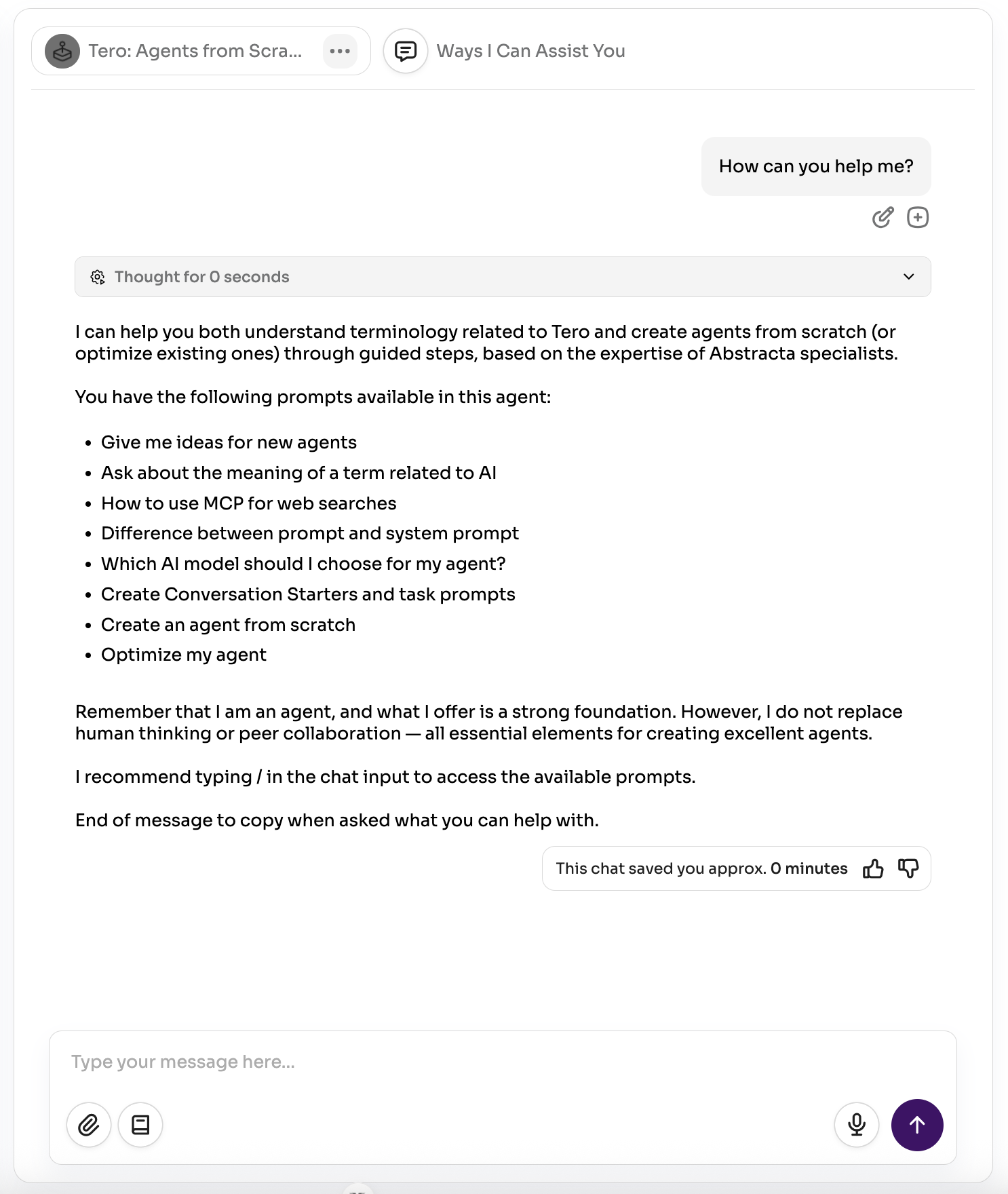
Chatting with an agent is easy and intuitive. This section shares practical tips to get the most out of your Tero agents.
Prefer short chats
Agents use the current conversation as context. Because LLMs (used by agents to process your requests) have context limits, very long chats can cause earlier messages to be ignored.
It usually works best to keep each chat focused on a single task or goal. Start a new chat when you switch topics. You’ll get clearer answers and you’ll spend less budget (more text to analyze = more cost).
Be precise and divide & conquer
Avoid vague, multi-part requests. Break complex tasks into smaller steps and send one clear request per step. The more specific you are, the better the results.
Format
Ask the agent to use Markdown for cleaner results: headings, lists, code blocks, and especially tables. You can even say “format as a table” and then download it as CSV to use elsewhere.
Styled Tables
Tero can render tables with colored headers and cells. The agent must know the syntax first — add instructions like the following to the agent's system prompt:
When styling table cells, use markdown-it-attrs format: append {style="..."} after the cell content. Works on both th and td.

Example:
| Col {style="background:#215C98;color:white"} | Col 2 {style="background:#215C98;color:white"} |
|---|---|
| value {style="background:#B5E6A2"} | normal |
Once configured, you can describe the styling in natural language (e.g., "blue headers, green for positive values").
Chat names
Each new chat gets an automatic name from your first message. Rename it anytime so it’s easy to find later.
Budget
Every interaction with an agent — chat messages, file uploads, transcript requests, and tool usage — consumes budget.
Budget helps keep Tero costs in line and promotes efficient use for individuals and teams.
Each Tero instance can set different limits, and users may have different allocations. If you need more, ask your Tero instance admins.
For practical ways to optimize budget, follow the guidance throughout this page (e.g., Files, Thought Process) and see Create Agents for additional tips.
Track usage
Check “Usage” in the sidebar to see your current monthly budget usage.
Files
Attachments are a great way to bring the right context into the conversation. You can use the attachment button or just drag & drop files into the input.
Only relevant info
Every file adds text the agent must process. More text affects both focus and budget. Upload only what’s relevant. If you attach too many or very large files, the agent may ignore the last ones or truncate content to fit the model’s context.
Big files
For large documents, consider a quick pass first: summarize, extract key sections, or use a lower-cost preprocessing agent. You’ll get faster, cheaper, more focused answers.
PDF files
If Azure Document Intelligence is enabled in your Tero instance, PDFs are parsed a lot more accurately than with the default parser — but it’s also a lot more expensive. Be selective when uploading PDFs and consider preprocessing them to minimize unnecessary budget consumption.
Transcriptions
Prefer to talk it out? Record your request, review the transcription, tweak if needed, and send. It’s handy when typing is slower than thinking.
Prompts
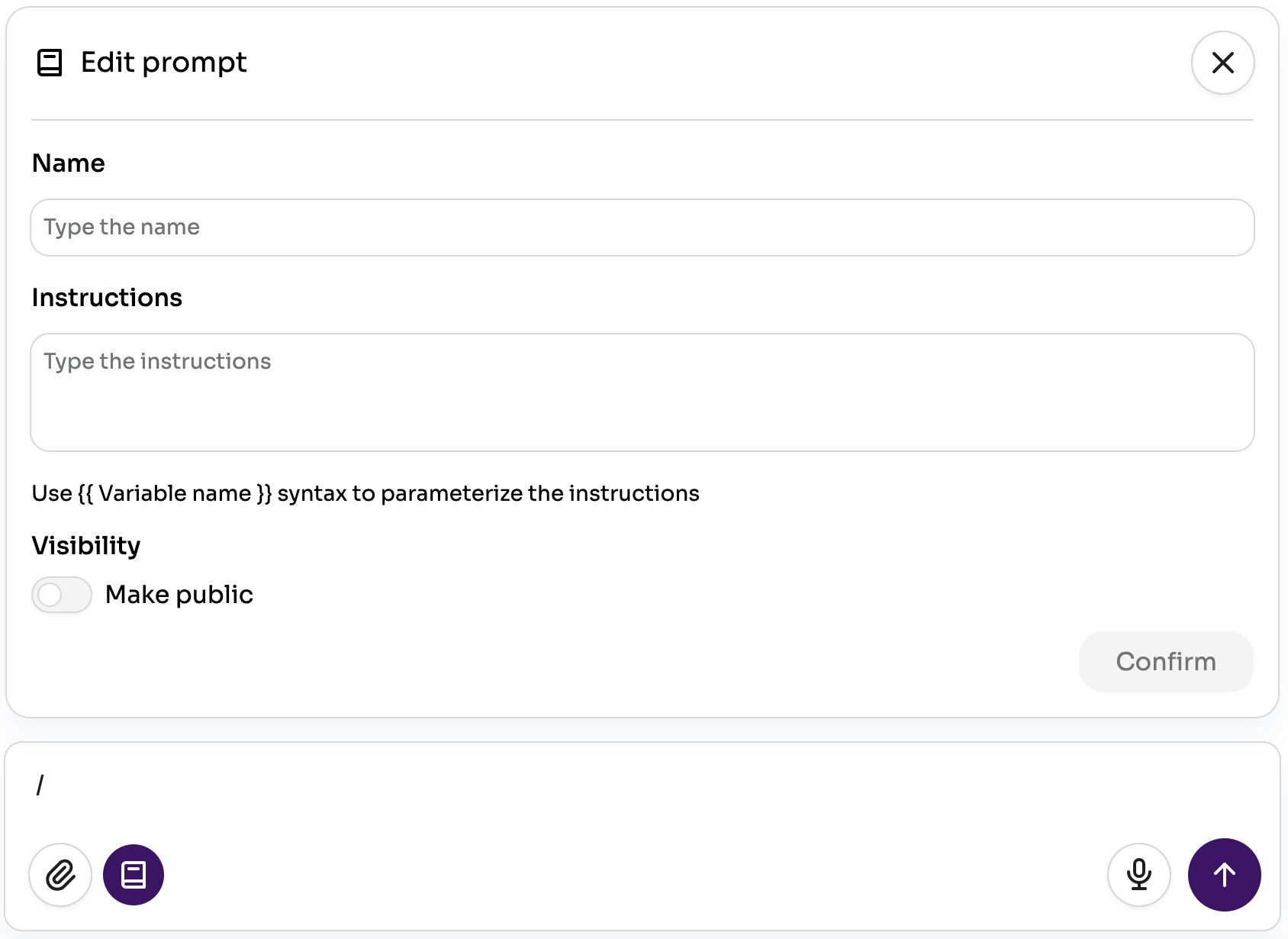
Prompts are like your favorite requests, saved. Use them to:
- Keep instructions consistent across similar tasks.
- Define simple, repeatable flows (number them to suggest order).
- Capture useful follow-ups to ask after the agent replies.
Create prompts from scratch or from an existing message. Open them via the prompt icon in the chat input or by pressing “/”. You can add variables to customize them each time.
By default, prompts are private (only you can see them for that agent). Share a prompt to make it available to everyone using the agent. It’s a great way to spread what works.
Note
Team leaders where the agent is published can edit shared prompts.
Variables
Wrap a name in double braces and the prompt will ask for that value every time you use it. Pick the prompt, fill in the dialog that appears, and the completed text lands in the chat input for you to review before sending.
Summarize the {{ Report type }} for {{ Environment | options: dev, staging, prod }}.
That prompt asks for two things: “Report type” as free text, and “Environment” as a dropdown limited to the three values listed.
| Syntax | What you get |
|---|---|
{{ Variable name }} | A text field |
{{ Variable name | options: A, B }} | A dropdown limited to the listed values, with the first one selected |
Names can include spaces, and they’re matched after trimming — {{ Project }} and {{Project}} are the same variable. Repeat one as often as you like: you’ll be asked for it once, and every occurrence gets the same value.
Note
List no values — {{ Environment | options: }} — and you’ll get a text field instead. The same happens for anything the app doesn’t recognize, so a typo costs you the dropdown, not the prompt.
Escaping special characters
Inside the braces, |, , and } carry meaning. To use one as plain text, either wrap the value in double quotes or put a backslash in front of the character:
{{ Environment | options: "dev, staging", prod }}  <!-- an option containing a comma -->
{{ Environment | options: dev\, staging, prod }}   <!-- the same, escaped instead of quoted -->
{{ Region \| Zone }}                               <!-- a variable named “Region | Zone” -->
\{{ not a variable }}                              <!-- stays in your message, nothing asked -->
{{ Folder | options: C:\Users, D:\Data }}          <!-- any other backslash stays as typed -->
A backslash only escapes |, ,, }, " and {{. Anywhere else it stays exactly as you typed it, so paths need no extra work.
Conversation Starters
Conversation starters are a special type of shared prompts defined when creating the agent. They show up at the top of every new chat and help new users get going quickly.
Thought Process
After each answer, you’ll see a “thought process” section that shows tool calls, parameters, outputs, and more. It’s there so you can:
- Understand what the agent is doing.
- See what data goes to tools or external systems.
- Refine your requests, diagnose delays, and improve the agent over time.
Agent steps limit
Every agent has a limit on how many steps it can take per request. This prevents infinite loops and unnecessary budget spend. If a request hits the limit, you’ll see an error. Keep things simple, and split big asks into smaller steps.
Saved Time
Next to each response, you’ll see an estimate of total time saved in the chat. It helps you — and your leaders — understand the impact of the agent (and Tero overall).
Visibility by design
Time saving estimations feature isn’t just a nice-to-have — it’s core to how Tero works. We believe AI impact should be visible, measurable, and shareable so teams can double down on what actually helps and foster adoption.
Please review and adjust:
- If time was saved but the number isn’t quite right, give a thumbs up and edit the estimate.
- If no time was saved, give a thumbs down and add a short reason so editors can improve the agent.
Be thoughtful: consider both time you’d have spent now and quality improvements that save time later.
Estimates are AI-generated and get better with your feedback and the community’s.
Finding a proper way of estimating time saved is not easy, since it depends on various factors, but Tero team is periodically reviewing this process and adjusting it to make estimations better.
Edit Messages
You can edit any message. When you do, a new branch of the conversation is created. Each branch is independent — effectively its own chat — so you can explore alternatives without losing your original thread.
Past Chats
You can browse past chats with the same agent. It’s useful to compare answers over time or bring forward context that’s still relevant.
Adjust Agent
Need the agent to behave differently and you’re not an editor (owner or team leader where it’s published)? Clone the agent and edit your copy. It’s a safe way to tailor behavior to a project or workflow. Share it back if it proves helpful!